automate wordpress blog posting from google docs
Automate WordPress blog posting from Google Docs to save time and reduce errors. This guide covers the workflow, trade-offs, and practical steps.
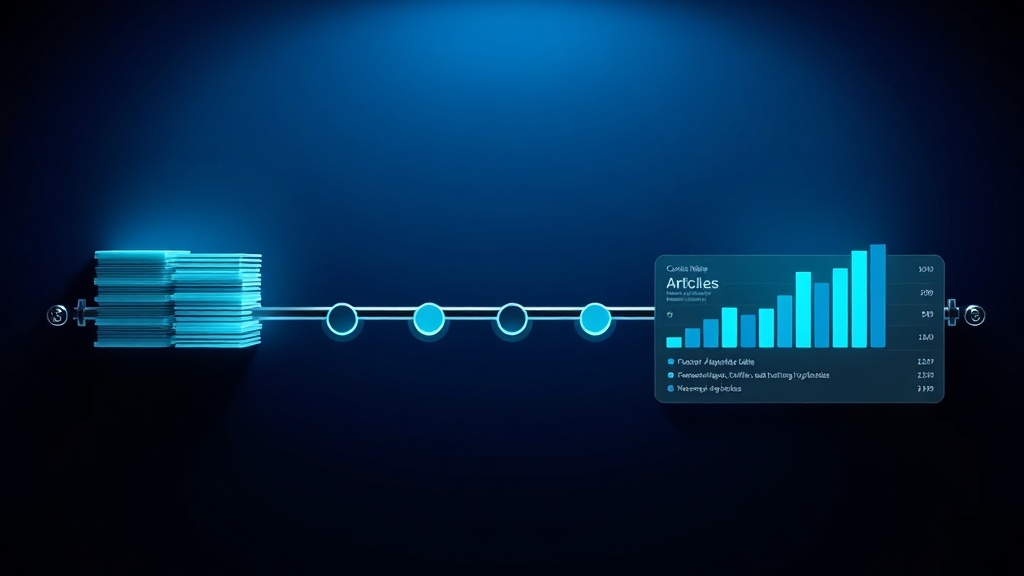
Automating WordPress blog posting from Google Docs means your draft moves from Google Docs to a published WordPress post without manual copy-paste, formatting, or scheduling.
The most effective approach uses a tool that connects Google Docs to WordPress via API, handling formatting, images, categories, and SEO metadata automatically.
This works well for teams publishing multiple articles per week, but smaller sites may not need full automation — the setup effort can outweigh the time saved.
- Eliminates manual copy-paste and formatting errors
- Reduces publishing time from 30 minutes to under 5 minutes per post
- Requires initial setup but pays off after 5-10 articles
- Best for teams publishing 4+ articles per month
Common WordPress Blog Posting Mistakes That Cost You Time
Manually copying blog posts from Google Docs to WordPress is a hidden time sink that most teams underestimate. Each article requires formatting, image uploads, link insertion, and metadata entry — easily 20-30 minutes per post.
For example, a SaaS team publishing eight articles per month spends over four hours just on manual transfer. That's half a working day lost to repetitive tasks that could be automated.
The most common mistake is assuming that manual transfer is 'fast enough' or that automation is too complex to set up. In reality, the setup takes a few hours and pays for itself within weeks.
Over a year, that team loses over 200 hours — time that could be spent on strategy, research, or improving content quality.
If keeping a consistent publishing schedule feels impossible without a dedicated team, Zorenax automates the entire cycle — keyword to published post, on schedule, without manual work.
What Actually Matters in Automating Blog Posting
Most teams focus on the wrong part of the workflow — they try to automate the writing itself rather than the transfer and formatting. The real bottleneck is not drafting but the manual steps between 'done writing' and 'published'.
The common assumption is that automation means sacrificing control over formatting and SEO. In practice, a well-configured automation preserves your formatting, applies your categories and tags, and even sets featured images — all while giving you a final review step before publishing.
The key insight is that automation doesn't remove human oversight; it removes the mechanical, error-prone steps. You still review the content, but you do it in the final WordPress editor rather than during a tedious copy-paste process.
- Manual transfer introduces formatting errors that take time to fix — automation eliminates them entirely
- Automation preserves internal links and image placement, which manual copy-paste often breaks
- Scheduling can be automated too, so posts go live at optimal times without manual intervention
- Version control improves — Google Docs remains the source of truth, and WordPress reflects the latest approved version
Step-by-Step: Automate WordPress Blog Posting from Google Docs
For example, a B2B SaaS startup publishing two articles per week can set up a workflow where the writer finishes in Google Docs, clicks a button, and the article appears in WordPress as a draft with all formatting, images, and SEO metadata intact.
The key watch-out is that not all formatting transfers perfectly — complex tables or custom fonts may need manual adjustment. Stick to standard heading styles and bullet lists for best results.
This workflow scales well: a solo blogger can use it to save 30 minutes per post, while a team of five writers can coordinate through a shared Google Drive folder, each article automatically routed to the correct WordPress category.
- Connect Google Docs to WordPress via an automation tool like Zorenax — this creates a direct API link so your Google Doc content can be pushed to WordPress with one click.
- Set up formatting rules in the tool — map Google Docs heading styles (H2, H3) to WordPress heading styles, and configure how bullet lists, images, and links should be handled.
- Configure metadata mapping — define which Google Doc fields become the WordPress title, excerpt, categories, tags, and featured image. Most tools let you use document properties or custom fields.
- Test with a sample article — publish a test post to verify formatting, images, and metadata transfer correctly. Adjust rules as needed before going live with real content.
The automation flow described above is what the Zorenax auto-publishing system runs for you — set your cadence once, and content goes live without intervention.
Trade-Offs: Manual vs Automated Blog Posting
Manual posting gives you full control over every detail but costs time and introduces errors. Automation saves time and reduces errors but requires initial setup and may not handle complex formatting perfectly.
Manual is better for one-off, highly designed posts with custom layouts. Automation wins for regular, structured content like blog articles, case studies, and news updates. Teams publishing 4+ articles per month benefit most from automation.
| Task | Manual | With Zorenax |
|---|---|---|
| Copy text from Google Docs | Copy-paste each section | Auto-transfer with one click |
| Format headings and lists | Reapply styles manually | Preserves Google Docs styles |
| Upload and place images | Download, upload, insert | Auto-uploads and positions |
| Set categories and tags | Select from dropdowns | Maps from document fields |
| Add SEO metadata | Fill in Yoast fields | Auto-fills from document |
| Schedule publish time | Set date and time | Auto-schedules based on rules |
Implementation Checklist: Automate WordPress Blog Posting
Today: Audit your last 10 published articles — time how long each took from final Google Doc to published post. Calculate the average time per article and the total hours spent per month.
This Week: Set up a Zorenax account and connect it to your WordPress site. Use the free credits to test the workflow with one article. Verify that formatting, images, and metadata transfer correctly.
Next 30 Days: Automate all new blog posts through the workflow. Track the time saved per article and compare to your baseline. Aim to reduce publishing time by at least 70%.
Next Steps After Automating Your Blog Posting
You now know that automating WordPress blog posting from Google Docs is not about replacing human effort but about eliminating the mechanical, error-prone steps that waste hours each week.
If automating this workflow without sacrificing quality sounds right, Zorenax handles the full pipeline — from Google Doc to published WordPress post — and you can start with 12 free credits to see how it fits your process.
The first step is to connect your WordPress site and run a test article. That single test will show you exactly how much time you can save.
Frequently Asked Questions
Will automation break my existing WordPress formatting or plugins?
No, automation tools like Zorenax use the WordPress REST API, which is the same interface used by the block editor. They don't modify your theme or plugin settings. However, if you use custom post types or advanced custom fields, you may need to configure the tool to map those fields. Test with a draft first to ensure compatibility.
Can I still review and edit the post before it goes live?
Yes, most automation tools create a draft in WordPress rather than publishing immediately. You can review the post in the WordPress editor, make any final adjustments, and then publish manually or on a schedule. This gives you full control while saving the mechanical transfer work.
What happens to images in Google Docs — do they get uploaded to WordPress?
Yes, images are automatically downloaded from Google Docs and uploaded to your WordPress media library. They are placed in the correct position in the post. However, very large images may slow down the transfer, so it's best to optimise images before adding them to the document.
Does this work with Google Docs templates or shared drives?
Yes, you can use templates and shared drives. The automation tool typically watches a specific folder or uses a trigger like a button in the document. This is useful for teams where multiple writers contribute to a shared drive — each article can be automatically routed to the correct WordPress category based on folder or document properties.
What if I need to update a published post — can I push changes from Google Docs?
Some automation tools support updating existing posts by matching the document ID or a custom field. This is useful for keeping content up to date without manually editing in WordPress. However, not all tools support this, so check the feature list before committing. Zorenax supports updating posts by matching the document ID.
Is it secure to connect Google Docs to WordPress via a third-party tool?
Reputable tools use OAuth 2.0 for both Google and WordPress authentication, meaning they never see your passwords. They only have access to the specific documents and posts you authorise. Always review the permissions requested and choose tools that follow security best practices. Zorenax uses OAuth 2.0 and does not store your content.
To go deeper, explore Auto Publishing in Zorenax, or see pricing plans.
Your content calendar should run itself. Start Free → and publish your first automated article today.
Try Zorenax free with 12 credits
Find keyword opportunities, generate articles, and publish to WordPress automatically.
Get better at
SEO automation.
Join Zorenax and start creating SEO-ready content with AI.
Try For Free